
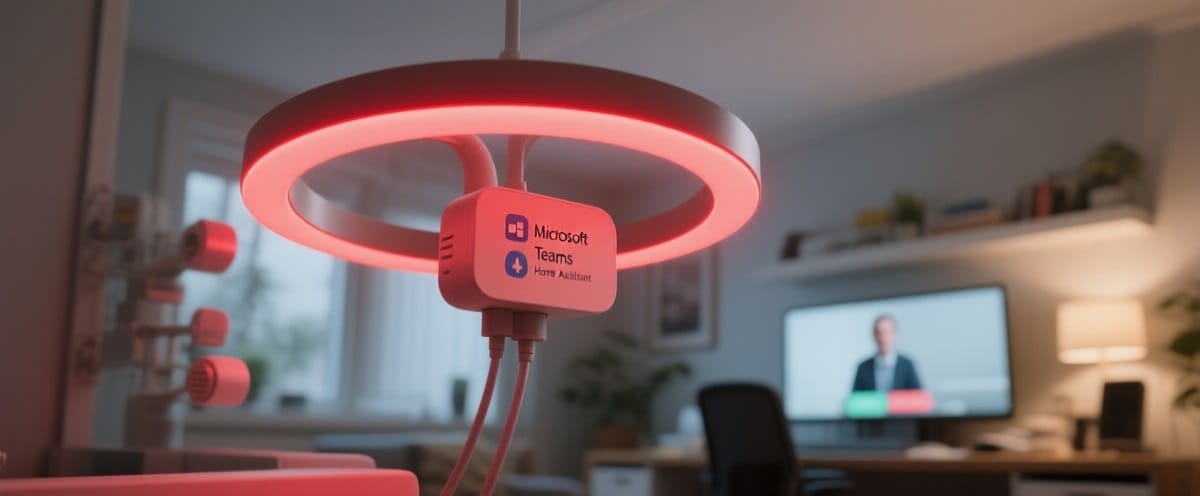
Remember the busy light I built with an ESP8266 and Home Assistant? The one that helps my 3-year-old understand when daddy is available? Well, it's gotten a lot smarter since then and now he's 5 😄
The original setup worked great with a motion detector - if someone walked past during work hours, the light turned red. Simple and effective. But there was a problem: it didn't actually know if I was in a meeting or just sitting at my desk working. Red light when I'm just working? Not ideal.
Enter Microsoft Teams Integration
Working from home means most of my meetings happen in Microsoft Teams. Wouldn't it be great if the busy light could know when I'm actually in a call? That's exactly what the MS365 Teams integration for Home Assistant does.
This integration connects to your Microsoft 365 account and pulls your Teams presence status directly into Home Assistant. No more guessing - if I'm in a call, presenting, or in a meeting, Home Assistant knows about it instantly.
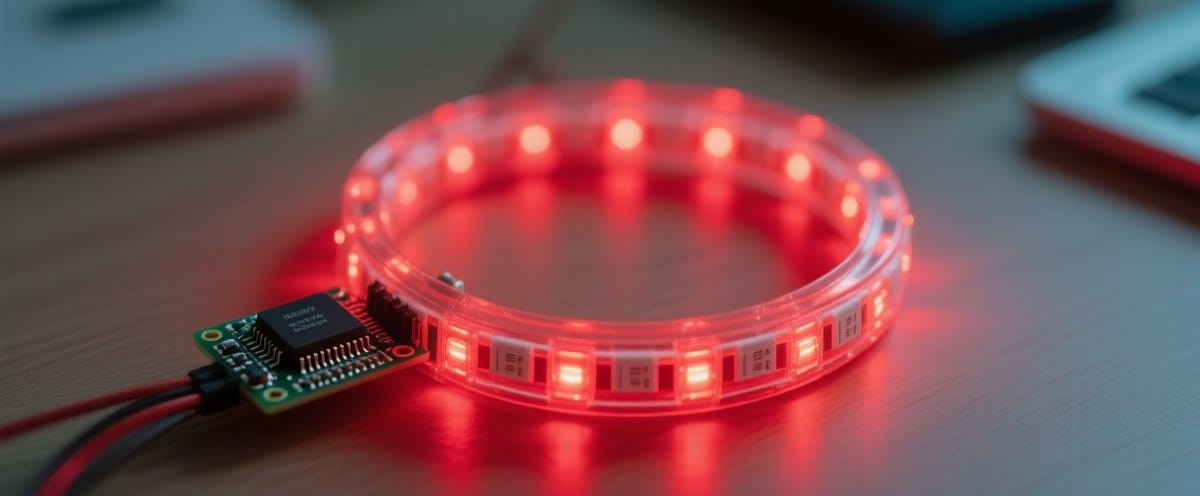
What You'll Need
Beyond the busy light hardware I covered in the original post, you'll need:
- A Microsoft 365 account (this doesn't work with personal accounts)
- The MS365 Teams integration for Home Assistant
- Access to create an Entra ID App Registration (formerly Azure AD)
The setup process is well documented on the MS365-HomeAssistant site, so I won't repeat all the details here. The key steps are:
- Create an Entra ID App Registration
- Grant the necessary permissions for Teams presence
- Install the integration in Home Assistant
- Authenticate with your Microsoft account
Once authenticated, you'll get a sensor in Home Assistant that tracks your Teams status in real-time.
The Automation
Here's where the magic happens. This automation monitors my Teams status and controls the busy light accordingly:
alias: Teams Meeting Status
description: ""
triggers:
  - entity_id:
      - sensor.teams_sth_status
    trigger: state
conditions: []
actions:
  - choose:
      - conditions:
          - condition: or
            conditions:
              - condition: state
                entity_id: sensor.teams_sth_status
                state: InACall
              - condition: state
                entity_id: sensor.teams_sth_status
                state: InAConferenceCall
              - condition: state
                entity_id: sensor.teams_sth_status
                state: Presenting
              - condition: state
                entity_id: sensor.teams_sth_status
                state: Busy
              - condition: state
                entity_id: sensor.teams_sth_status
                state: InAMeeting
        sequence:
          - data: {}
            target:
              entity_id: input_boolean.teams
            action: input_boolean.turn_on
          - metadata: {}
            data:
              rgb_color:
                - 255
                - 38
                - 0
              brightness_pct: 100
            target:
              entity_id: light.busylight_neopixel_light
            action: light.turn_on
    default:
      - target:
          entity_id: input_boolean.teams
        data: {}
        action: input_boolean.turn_off
      - metadata: {}
        data:
          rgb_color:
            - 0
            - 249
            - 0
          brightness_pct: 100
        target:
          entity_id: light.busylight_neopixel_light
        action: light.turn_on
mode: single
Let me break down what's happening here:
The Trigger: Whenever my Teams status changes, the automation fires.
The Logic:
- If I'm InACall, InAConferenceCall, Presenting, Busy, or InAMeeting → Red light (255, 38, 0)
- For any other status (Available, Away, etc.) → Green light (0, 249, 0)
I also toggle an input_boolean.teams helper entity that I can use in other automations if needed.
Why This is Better
The difference is night and day. Now the busy light only turns red when I'm actually engaged in a Teams meeting or call. When I'm just working at my desk, it stays green - my family knows they can pop in for a quick question.
The automation catches all the important states:
- InACall / InAConferenceCall - Obviously in a meeting
- Presenting - Screen sharing means definitely don't interrupt
- Busy - Teams sets this automatically during scheduled meetings
- InAMeeting - General meeting status
Real-World Benefits
Since implementing this, interruptions during important client calls have dropped to zero. My partner knows that a red light means "wait 5 minutes" rather than guessing based on whether my office door is closed.
The 5-year-old? He's now a pro at the traffic light system. Red means play quietly, green means "Daddy, come look at my LEGO!" works just fine.
Taking It Further
The beauty of this integration is that the Teams status sensor can be used for so many other automations:
- Automatically muting smart home notifications during calls
- Pausing music when a call starts
- Sending your status to other smart home devices
- Triggering "Do Not Disturb" on your phone
You could even extend the busy light to show different colors for different states - orange for "away," purple for "do not disturb," etc.
Wrapping Up
If you're working from home with Microsoft Teams and have a Home Assistant setup, this integration is a no-brainer. Combined with the physical busy light, it creates a simple, visual system that everyone in the household can understand at a glance.
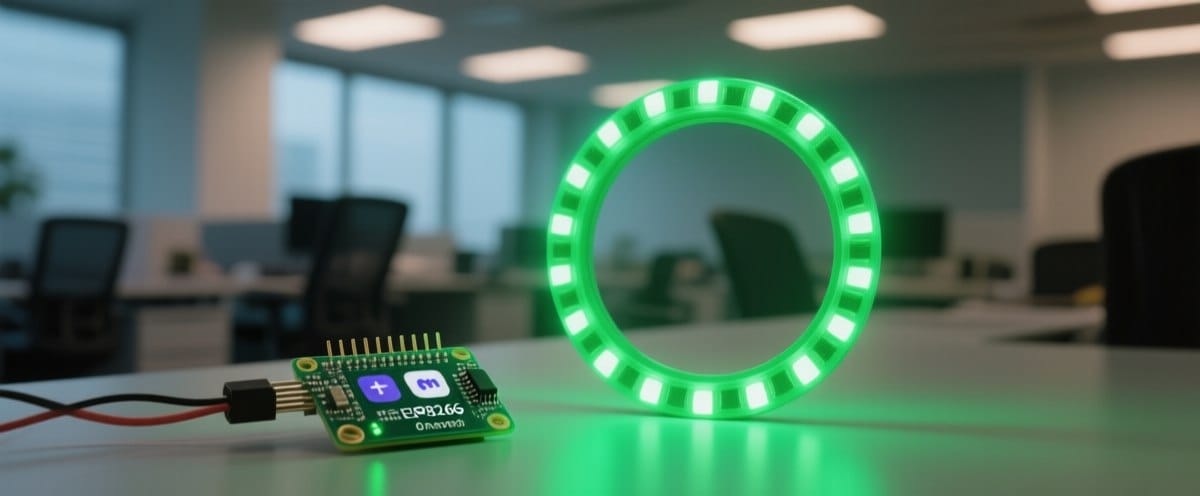
The combination of hardware (ESP8266 + NeoPixel ring) and software (Home Assistant + MS365 integration) gives you a professional-grade presence indicator for less than €20 in parts.
Working from home doesn't mean your family has to guess when you're available. Sometimes the best solutions are the simplest ones, a light that's red or green, powered by the actual status of your meeting software.
Related Links:


