
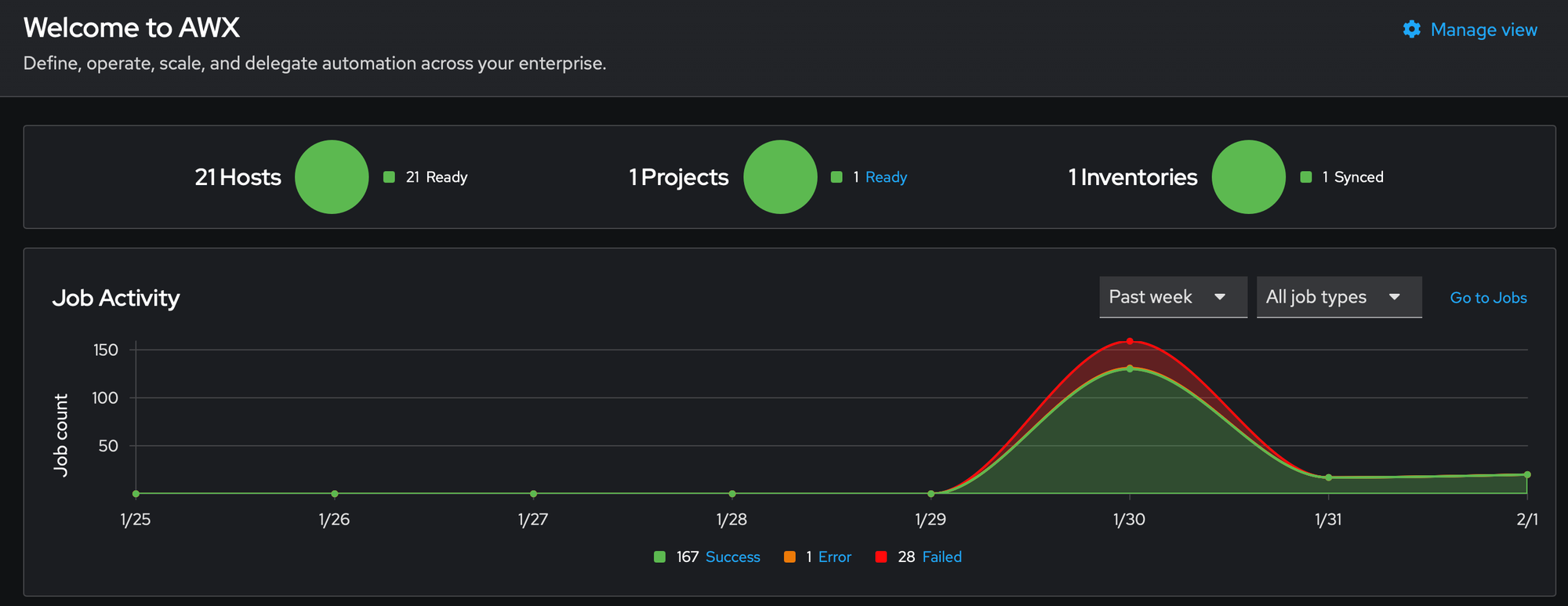
Managing system updates across multiple servers can be a time-consuming and error-prone task. In this article, I'll walk you through building a complete automated patch management solution using Ansible AWX, covering everything from installation to scheduling automatic updates across 21 servers including a Docker Swarm cluster, with support for custom post-update scripts.
Architecture Overview
This solution consists of:
- 21 Ubuntu/Debian servers organized into logical groups
- Ansible AWX for automation orchestration with web UI
- GitLab for version-controlled playbooks
- Minikube/Kubernetes as AWX runtime environment
- Post-update scripts for server-specific tasks
Server Groups
- Infrastructure (8 servers): Core services
- Docker Swarm (8 servers): 3 managers + 5 workers
- Git Servers (2 servers): Version control infrastructure
- HAProxy (2 servers): Load balancers
- DNS Servers (2 servers): Critical DNS infrastructure
Prerequisites
- Ubuntu 20.04+ or Debian 11+ server (minimum 2 CPU, 6GB RAM)
- Docker installed
- Basic Ansible knowledge
- GitLab instance (self-hosted or cloud)
Part 1: Installing AWX on Minikube
Install Docker
curl -fsSL https://get.docker.com -o get-docker.sh
sudo sh get-docker.sh
sudo usermod -aG docker $USER
newgrp docker
Install Minikube
curl -LO https://storage.googleapis.com/minikube/releases/latest/minikube-linux-amd64
sudo install minikube-linux-amd64 /usr/local/bin/minikube
rm minikube-linux-amd64

# Start Minikube
minikube start --cpus=2 --memory=6144 --driver=docker --addons=ingress
Install kubectl
curl -LO "https://dl.k8s.io/release/$(curl -L -s https://dl.k8s.io/release/stable.txt)/bin/linux/amd64/kubectl"
sudo install -o root -g root -m 0755 kubectl /usr/local/bin/kubectl
Install Kustomize
curl -s "https://raw.githubusercontent.com/kubernetes-sigs/kustomize/master/hack/install_kustomize.sh" | bash
sudo mv kustomize /usr/local/bin/
Deploy AWX Operator
cd ~
git clone https://github.com/ansible/awx-operator.git
cd awx-operator
git checkout 2.19.1  # Use latest stable version

export NAMESPACE=awx
kubectl create namespace awx
make deploy
Deploy AWX Instance
Create the AWX configuration:
cat <<EOF > awx-demo.yml
---
apiVersion: awx.ansible.com/v1beta1
kind: AWX
metadata:
  name: awx-demo
  namespace: awx
spec:
  service_type: nodeport
  nodeport_port: 30080
  projects_persistence: true
  projects_storage_size: 5Gi
EOF

kubectl apply -f awx-demo.yml -n awx
Wait for all pods to be running:
kubectl get pods -n awx -w
Access AWX
Retrieve admin password:
kubectl get secret awx-demo-admin-password -o jsonpath="{.data.password}" -n awx | base64 --decode && echo
Create a systemd service for persistent port forwarding:
sudo tee /etc/systemd/system/awx-portforward.service << EOF
[Unit]
Description=AWX Port Forward
After=network.target

[Service]
Type=simple
User=$(whoami)
ExecStart=/usr/local/bin/kubectl port-forward service/awx-demo-service 30080:80 -n awx --address=0.0.0.0
Restart=always
RestartSec=10

[Install]
WantedBy=multi-user.target
EOF

sudo systemctl daemon-reload
sudo systemctl enable awx-portforward
sudo systemctl start awx-portforward
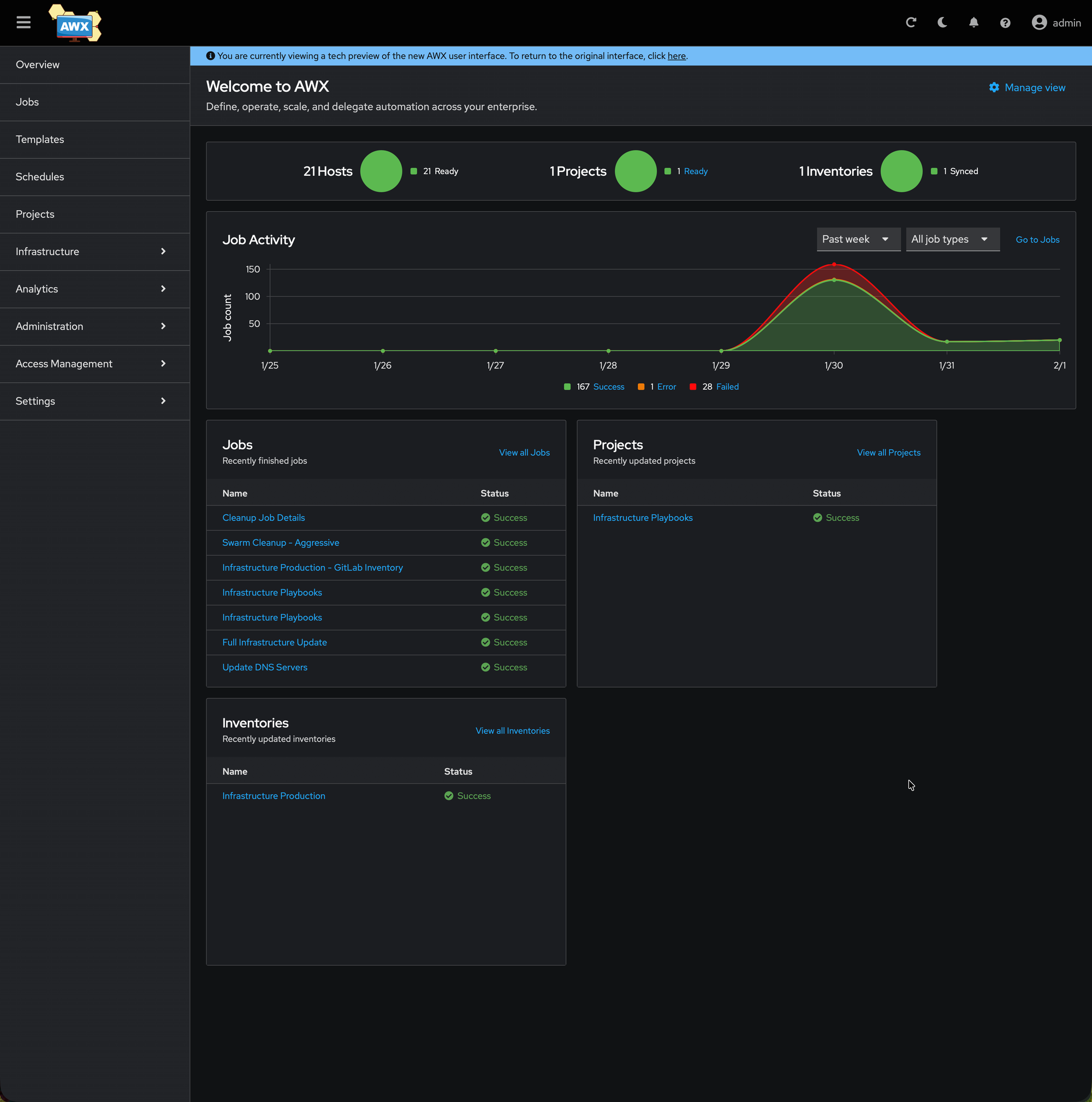
Access AWX at: http://YOUR_SERVER_IP:30080
Part 2: Preparing the Infrastructure
Generate SSH Keys for AWX
ssh-keygen -t ed25519 -C "awx-automation" -f ~/.ssh/awx_key -N ""
Deploy SSH Keys to All Servers
Create a deployment script:
cat > deploy-awx-key.sh << 'EOF'
#!/bin/bash
SERVERS=(
    "10.0.1.10"  # infra-01
    "10.0.1.11"  # infra-02
    # ... add all your servers
)
USER="admin"  # Your SSH user
KEY_FILE="$HOME/.ssh/awx_key.pub"

for server in "${SERVERS[@]}"; do
    echo "Deploying to $server..."
    ssh-copy-id -i "$KEY_FILE" "$USER@$server"
done
EOF

chmod +x deploy-awx-key.sh
./deploy-awx-key.sh
Configure Passwordless Sudo
Create an Ansible playbook:
---
# playbooks/configure-sudo.yml
- name: Configure passwordless sudo
  hosts: all
  become: yes
  gather_facts: no

  tasks:
    - name: Configure passwordless sudo
      copy:
        content: "admin ALL=(ALL) NOPASSWD: ALL\n"
        dest: /etc/sudoers.d/admin
        mode: '0440'
        validate: '/usr/sbin/visudo -cf %s'
Execute:
ansible-playbook -i inventory.yml playbooks/configure-sudo.yml \
  --private-key ~/.ssh/awx_key -u admin --become --ask-become-pass
Part 3: Creating the GitLab Repository
Repository Structure
awx-infrastructure/
├── README.md
├── inventories/
│   └── production/
│       └── hosts.yml
├── playbooks/
│   ├── update-standard.yml
│   ├── update-swarm.yml
│   └── configure-sudo.yml
└── group_vars/
    ├── all.yml
    ├── swarm_managers.yml
    └── swarm_workers.yml
Inventory File
# inventories/production/hosts.yml
---
all:
  children:
    infra:
      hosts:
        infra-01:
          ansible_host: 10.0.1.10
        infra-02:
          ansible_host: 10.0.1.11
        # ... more hosts

    swarm_cluster:
      children:
        swarm_managers:
          hosts:
            swarm-mgr-01:
              ansible_host: 10.0.2.10
            # ... more managers

        swarm_workers:
          hosts:
            swarm-worker-01:
              ansible_host: 10.0.2.20
            # ... more workers

    git_servers:
      hosts:
        git-01:
          ansible_host: 10.0.3.10

    haproxy:
      hosts:
        haproxy-01:
          ansible_host: 10.0.4.10

    dns_servers:
      hosts:
        dns-01:
          ansible_host: 10.0.5.10
Global Variables
# group_vars/all.yml
---
ansible_user: admin
ansible_become: yes
ansible_python_interpreter: /usr/bin/python3
ansible_ssh_common_args: '-o StrictHostKeyChecking=no'
Standard Update Playbook
# playbooks/update-standard.yml
---
- name: Update standard servers (with optional post-scripts)
  hosts: "{{ target_hosts | default('all') }}"
  become: yes
  gather_facts: yes

  tasks:
    - name: Update apt cache
      apt:
        update_cache: yes
        cache_valid_time: 3600
      when: ansible_os_family == "Debian"

    - name: Upgrade all packages
      apt:
        upgrade: dist
        autoremove: yes
        autoclean: yes
      when: ansible_os_family == "Debian"
      register: upgrade_result

    - name: Check if reboot is required
      stat:
        path: /var/run/reboot-required
      register: reboot_required
      when: ansible_os_family == "Debian"

    - name: Reboot server if needed
      reboot:
        msg: "Reboot initiated by Ansible"
        reboot_timeout: 300
      when:
        - ansible_os_family == "Debian"
        - reboot_required.stat.exists | default(false)

    # Post-update scripts execution
    - name: Execute post-update scripts (if defined)
      shell: "{{ item.path }} {{ item.args | default('') }}"
      args:
        executable: /bin/bash
        chdir: "{{ item.working_dir | default('/home/admin') }}"
      loop: "{{ post_update_scripts | default([]) }}"
      when:
        - post_update_scripts is defined
        - post_update_scripts | length > 0
      register: script_results
      become_user: admin

    - name: Display post-update script results
      debug:
        msg: |
          ✓ Script executed: {{ item.item.description | default(item.item.path) }}
          Return code: {{ item.rc }}
          Output: {{ item.stdout }}
      loop: "{{ script_results.results | default([]) }}"
      when:
        - script_results is defined
        - script_results.results is defined
        - item is not skipped
Docker Swarm Update Playbook
# playbooks/update-swarm.yml
---
- name: Update Docker Swarm nodes safely
  hosts: "{{ target_hosts }}"
  become: yes
  serial: 1  # ONE NODE AT A TIME
  gather_facts: yes

  tasks:
    - name: Get Swarm node ID
      shell: docker info --format '{% raw %}{{.Swarm.NodeID}}{% endraw %}'
      register: node_id
      changed_when: false

    - name: Drain node (maintenance mode)
      shell: docker node update --availability drain {{ node_id.stdout }}
      delegate_to: "{{ groups['swarm_managers'][0] }}"
      when: node_id.stdout != ""

    - name: Wait for services to migrate
      pause:
        seconds: 60

    - name: Update apt cache and packages
      apt:
        update_cache: yes
        upgrade: dist
        autoremove: yes

    - name: Check if reboot required
      stat:
        path: /var/run/reboot-required
      register: reboot_required

    - name: Reboot node if needed
      reboot:
        reboot_timeout: 300
      when: reboot_required.stat.exists | default(false)

    - name: Reactivate node
      shell: docker node update --availability active {{ node_id.stdout }}
      delegate_to: "{{ groups['swarm_managers'][0] }}"
      when: node_id.stdout != ""

    - name: Wait before next node
      pause:
        seconds: 30
Push to GitLab:
git add .
git commit -m "Initial commit - Infrastructure automation"
git push origin main
Part 4: Configuring AWX
Create GitLab Access Token
In GitLab:
- Go to Preferences → Access Tokens
- Create token with
read_repositoryscope - Save the token
Configure AWX
1. Create Organization
- Navigate to Resources → Organizations → Add
- Name:
Production Infrastructure
2. Create Credentials
SSH Credential:
- Resources → Credentials → Add
- Name:
SSH Infrastructure - Type:
Machine - Username:
admin - SSH Private Key: Paste content of
~/.ssh/awx_key - Privilege Escalation Method:
sudo
GitLab Credential:
- Name:
GitLab Token - Type:
Source Control - Username: Your GitLab username
- Password: GitLab access token
3. Create Project
- Resources → Projects → Add
- Name:
Infrastructure Playbooks - SCM Type:
Git - SCM URL:
https://gitlab.example.com/devops/awx-infrastructure.git - Credential:
GitLab Token - Options: ✅ Update Revision on Launch
- Click Sync
4. Create Inventory
- Resources → Inventories → Add inventory
- Name:
Infrastructure Production
Add Inventory Source:
- Sources → Add
- Name:
GitLab Inventory - Source:
Sourced from a Project - Project:
Infrastructure Playbooks - Inventory file:
inventories/production/hosts.yml - Options: ✅ Update on Launch, ✅ Overwrite
- Click Sync
Part 5: Creating Job Templates
Template 1: Update Infrastructure
- Resources → Templates → Add job template
- Name:
Update INFRA and GIT - Inventory:
Infrastructure Production - Project:
Infrastructure Playbooks - Playbook:
playbooks/update-standard.yml - Credentials:
SSH Infrastructure - Limit:
infra:git_servers - Options: ✅ Enable Privilege Escalation
Template 2: Update Swarm Workers
- Name:
Update Swarm Workers - Playbook:
playbooks/update-swarm.yml - Limit:
swarm_workers - Extra Variables:
target_hosts: swarm_workers
Template 3: Update Swarm Managers
- Name:
Update Swarm Managers - Playbook:
playbooks/update-swarm.yml - Limit:
swarm_managers - Extra Variables:
target_hosts: swarm_managers
Template 4: Update HAProxy
- Name:
Update HAProxy - Playbook:
playbooks/update-standard.yml - Limit:
haproxy
Template 5: Update DNS Servers
- Name:
Update DNS Servers - Playbook:
playbooks/update-standard.yml - Limit:
dns_servers
Part 6: Creating the Workflow
Build the Workflow
- Resources → Templates → Add workflow template
- Name:
Full Infrastructure Update - Click Visualizer
Build the execution chain:
START
  ↓
Update INFRA and GIT (8 servers)
  ↓ (on success)
Update Swarm Workers (5 servers, sequential)
  ↓ (on success)
Update Swarm Managers (3 servers, sequential)
  ↓ (on success)
Update HAProxy (2 servers, sequential)
  ↓ (on success)
Update DNS Servers (2 servers, LAST)
Each step runs only if the previous succeeds.
Part 7: Adding Post-Update Scripts
Post-update scripts allow you to run custom commands after system updates. This is perfect for:
- Restarting custom services
- Updating Docker containers
- Running maintenance tasks
- Cleaning up application caches
Example: Database Server with Container Updates
For a database server that runs Docker containers (MongoDB, MySQL, PostgreSQL), I want to update those containers after system updates.
Step 1: Create the Script on the Server
# On db-server
cat > /home/admin/container_update.sh << 'EOF'
#!/bin/bash
# container_update.sh - Update Docker containers after system update

echo "[$(date '+%Y-%m-%d %H:%M:%S')] Starting container update process..."

SERVICES="mongodb mysql pgsql pgvector-demo"

for service in $SERVICES; do
    echo "[$(date '+%Y-%m-%d %H:%M:%S')] Updating $service..."

    # Pull latest images
    docker compose pull $service

    # Restart with new images
    docker compose up -d $service

    if [ $? -eq 0 ]; then
        echo "[SUCCESS] $service updated successfully"
    else
        echo "[ERROR] Failed to update $service"
        exit 1
    fi
done

echo "[$(date '+%Y-%m-%d %H:%M:%S')] All containers updated successfully"
EOF

chmod +x /home/admin/container_update.sh
Step 2: Add to Inventory
Edit inventories/production/hosts.yml:
infra:
  hosts:
    db-server:
      ansible_host: 10.0.1.20
      post_update_scripts:
        - path: /home/admin/container_update.sh
          description: "Update Docker containers (MongoDB, MySQL, PostgreSQL)"
          working_dir: /home/admin
Step 3: Commit and Sync
git add inventories/production/hosts.yml
git commit -m "Add container update script for db-server"
git push origin main
Sync AWX:
- Resources → Projects → Sync
- Resources → Inventories → Sources → Sync
Execution Flow
When the update runs on db-server:
- System packages are updated
- Server reboots if needed
- Post-update script executes automatically:
- Pulls latest Docker images
- Restarts containers with new images
- Reports success/failure
AWX Output Example
TASK [Execute post-update scripts (if defined)] ********************************
changed: [db-server] => (item={'description': 'Update Docker containers',
                               'path': '/home/admin/container_update.sh'})

TASK [Display post-update script results] **************************************
ok: [db-server] => {
    "msg": "✓ Script executed: Update Docker containers (MongoDB, MySQL, PostgreSQL)
            Return code: 0
            Output: [2026-01-30 15:33:00] Starting container update process...
                    [2026-01-30 15:33:03] Updating mongodb...
                    [SUCCESS] mongodb updated successfully
                    [2026-01-30 15:33:04] Updating mysql...
                    [SUCCESS] mysql updated successfully
                    ..."
}
Adding Multiple Scripts
You can add multiple post-update scripts to a single server:
server-name:
  ansible_host: 10.0.x.x
  post_update_scripts:
    - path: /home/admin/backup_check.sh
      description: "Verify backups before update"

    - path: /home/admin/service_restart.sh
      args: "--graceful"
      description: "Restart services gracefully"

    - path: /home/admin/cache_clear.sh
      description: "Clear application caches"
Scripts execute in order and any failure stops execution.
Best Practices for Post-Update Scripts
- Make scripts idempotent: Safe to run multiple times
- Add logging: Include timestamps and clear messages
- Exit codes: Use proper exit codes (0 = success, non-zero = failure)
- Test manually first: Verify the script works before automation
- Keep scripts simple: One clear purpose per script
- Document: Add description in inventory
- Error handling: Catch and report failures gracefully
Part 8: Scheduling Automatic Updates
Create a Schedule
- Open workflow
Full Infrastructure Update - Schedules tab → Add
- Configure:
- Name:
Weekly Updates - Sunday 2AM - Start date/time: Next Sunday at 02:00
- Timezone: Your timezone
- Repeat frequency:
Week - Run on: ✅ Sunday
- Time:
02:00
- Name:
Part 9: Testing
Test Individual Templates First
# Test on a single non-critical server
Launch: "Update INFRA and GIT"
Monitor: Check logs in real-time
Verify: SSH to updated servers and check services
Test Post-Update Scripts
# Manually test the script first
ssh admin@db-server
bash /home/admin/container_update.sh
echo "Exit code: $?"

# Then test through AWX
Launch job on single server with script
Verify script executed successfully in logs
Test the Complete Workflow
# Launch the full workflow
# Monitor each stage
# Verify post-update scripts executed
# Total execution time: 30-60 minutes
I've built a complete automated patch management system that:
✅ Manages 21 servers across multiple groups
✅ Safely updates Docker Swarm without downtime
✅ Executes custom post-update scripts automatically
✅ Maintains critical services (DNS, proxy)
✅ Runs automatically on schedule
✅ Provides full audit trail and logging
✅ Uses GitOps for version control
The addition of post-update scripts makes this solution incredibly flexible - each server can have its own custom maintenance tasks that run automatically after updates, whether that's updating Docker containers, restarting services, or running cleanup tasks.
This solution scales easily add new servers to the inventory, define their post-update scripts if needed, sync AWX and they're automatically included in the update workflow.
Real-World Example
In my environment:
- db-server automatically updates its MongoDB, MySQL and PostgreSQL containers after system updates
- git-servers run repository maintenance scripts
- app-servers restart application services gracefully
- All happening automatically, every Sunday at 2 AM, with zero manual intervention


